DJI Ronin SC Ronin APP
DJI Ronin SC Ronin APP
You will need to activate the Ronin-SC before use. Simply download the Ronin app, enable Bluetooth on your phone and connect to the Ronin-SC with the default password being 12345678, if the password is changed, press the M button 6 times to restore the default password.
In the app, there is a create button which has different settings for you to choose from.
Virtual Joystick
This will turn your phone into a remote and virtual joystick where you can control the max speed and smoothing of the gimbal.
Max speed allows you to adjust the remote-controlled rotational speed. The smoothing allows you to control the sensitivity of the gimbal. The lower the smoothing value, the more sensitive the movement of the gimbal.
ActiveTrack 3.0
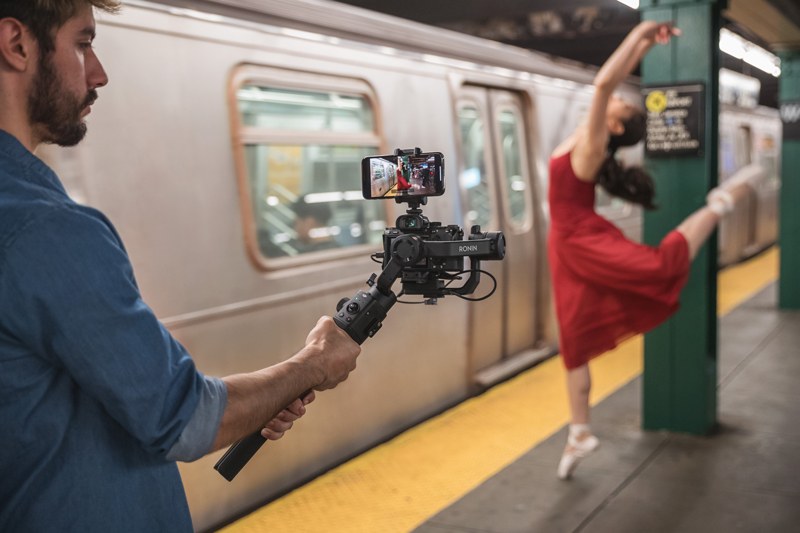
ActiveTrack 3.0 is optimised for tracking human subjects with a head and shoulder model (based off deep learning algorithms, fancy). Simply mount your phone on top of the camera and start tracking.
To select the subject you want to track, simply move the gimbal to get the subject you want to track in the selection box (the cross hairs) and press the trigger once to start tracking. You can also choose on the phone screen by drawing a box over the subject you want to track.
Once selected, use the joystick to control the position of the subject (the framing) and whilst you track, you can double tap the trigger to re-centre the object.
There is an icon on the bottom left hand corner where you can change the tracking speed from fast to slow. Fast is for fast moving object and circle shots and slow is for slow moving objects or stationary objects.
The Mobile phone will not store any videos.
Force Mobile
Force mobile will require you need use the phone holder and mount the mobile phone to a handle/tripod and after enabling this feature in the app, you can control the gimbal movement via the phones movement.
When the max speed is set to 50, the angle of rotation for the gimbal and mobile phone is a 1:1 ratio. If the max speed is set to lower than 50, the gimbal will rotate/move slower than the phones movement and if the speed is set to higher than 50, the gimbal will rotate/move faster than the movement of the phone.
Panorama
This mode allows you to capture a series of interconnecting still images with precise control based on your sensor type, lens focal lengths and your desired overlap rate. You will need to have your camera connected to the gimbal to make sure this will work.
DJI recommends an overlap of at least 30%.
The delay parameter is the interval time between shooting photos and it should be set to one second more than the shutter time to avoid blurred footage when long exposing.
After the confirming the camera settings, you can set the panorama range by dragging the two white dots on the grid map. Tap the shutter button to start capture.
Time-Lapse
In this mode, you can set the Ronin-SC to capture still images with your desired time interval time and will automatically stop once completed. The duration for the time-lapse and frame rate can be set in the app.
Motion-Lapse
You can set-up to 5 waypoints for the camera to move during the time-lapse. Simply use the joystick to move to the desired location and tap the + button, to deleted a waypoint, select the waypoint and hit the trash icon. You can also preview the motion lapse beforehand to see what the results could be like.
Motion Control
Motion control is designed to capture video with up to 10 waypoints. The travel time between two waypoints can also be set. You will need to select the waypoint manually with the joystick and add that way point to the grid. Stay time will determine how long the gimbal will remain steady at the waypoint before moving to the next waypoint.
Balance adjust
This is a test in the app to see how well you have balanced the camera on the gimbal. Make sure the gimbal is not obstructed in anyway before starting the test.
Motor Parameters
It is important to tune the motors to each set-up and change.
To do so, you can use the app to auto-tune and the Ronin-SC will automatically calculate the weight of the gimbal set-up and obtain the stiffness values.
You can also hold the M button and the tripper for 4 seconds to activate auto-tune.
https://www.d1store.com.au/
Comments
Post a Comment